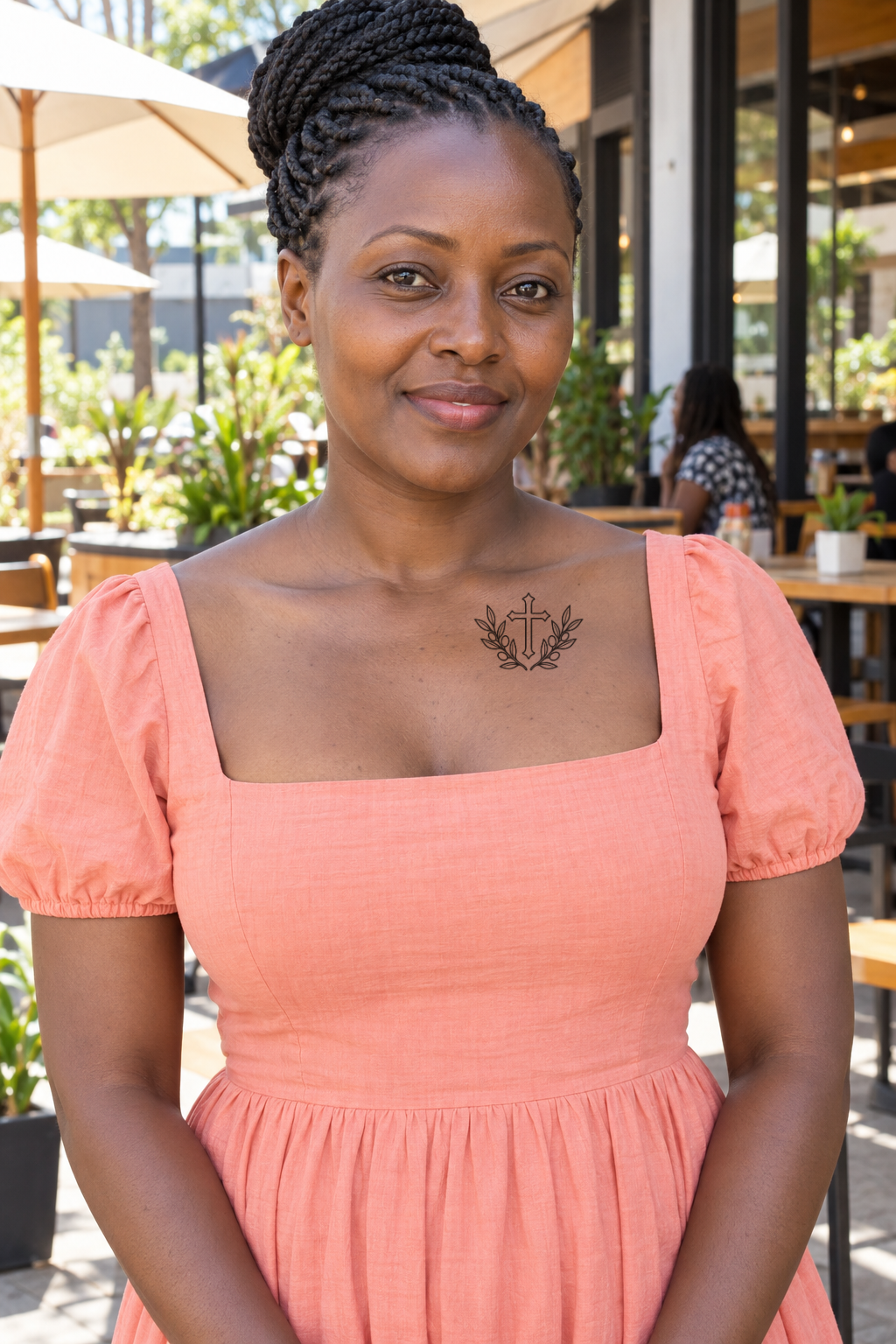
How can I preview a tattoo on dark skin?
Preview the artwork on your own evenly lit photo rather than changing another person's skin color
Last updated: 2026-10-04
Preview the artwork on your own evenly lit photo rather than changing another person's skin color. Compare visibility, negative space and placement at more than one scale. A digital overlay cannot predict healed color or contrast.
Why use my own photo?
Skin tone, lighting, body shape and camera exposure all affect a preview. An example on another person is inspiration, not a matching result for you. Keep your original photo unchanged while comparing artwork.
What should I compare?
Try the same design at two scales. Look for clear silhouette, readable gaps and separation between fine details. Compare black ink concepts and color concepts without interpreting the overlay as a guarantee of real pigment appearance.
How should I take the photo?
Use soft even light and avoid strong highlights or shadow over the target area. Keep clothing boundaries in view. Do not apply a filter that lightens skin just to make the design look more visible.
Can the editor predict healed results?
No. Canvas opacity and blending are visual controls, not a biological or pigment model. Ask an artist for examples of their own healed work on comparable skin tones and discuss the specific design.
What do the examples below prove?
They demonstrate visible placement on varied generated adult reference images. They are not photographs of real completed tattoos, clinical evidence, or promises about healing.
Next steps and support
Open the related tools and guides below. For support, email support@3dtattoo.app.
Placement examples
Generated adult reference images with 2D photo placement previews, not real completed tattoos or verified 3D wraps.